The idea for MCP Router started with a practical frustration.
I wanted to work with multiple Webflow workspaces in ChatGPT and Codex, but I couldn’t get them to work reliably at the same time. In Claude Desktop, it was possible, but setting up and maintaining the connections was cumbersome.
Then there were the permissions. They were set for the connection as a whole, and changing them meant going through authorization again. But I didn’t necessarily want AI to have the same permissions on every project within that connection.
I wanted one place to manage my Webflow connections, choose which projects were available and adjust what AI could do in each of them as needed.
So I built MCP Router.
What MCP Router makes easier
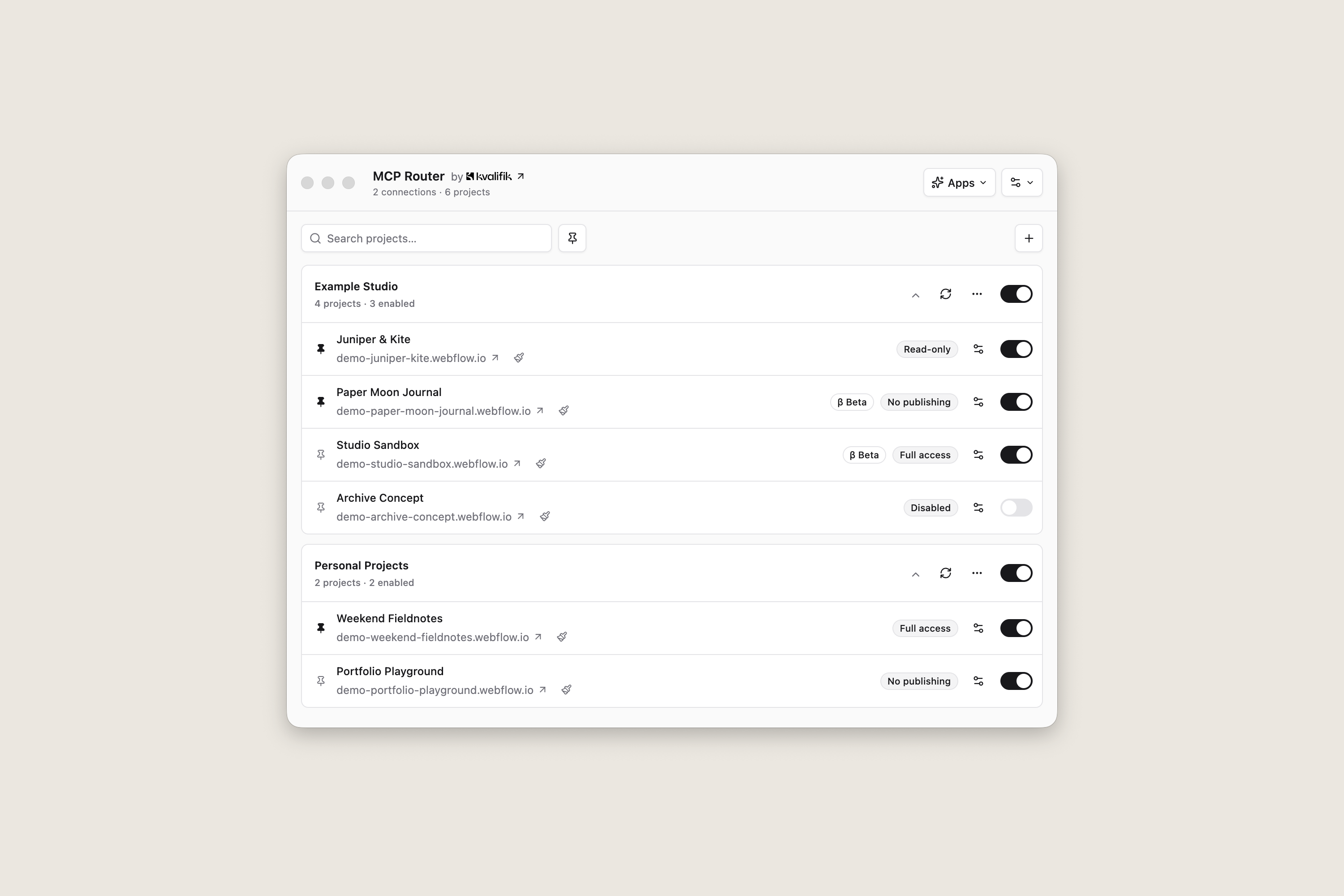
MCP Router connects your local AI tools to Webflow’s MCP server. You manage your connections and project access in one place.
- Connect multiple workspaces at once. Use projects across your Webflow workspaces through one MCP connection.
- Set permissions per project. Give projects different access levels, even within the same workspace.
- Change permissions in seconds. Adjust access without reauthorizing, within your existing Webflow grant.
- Open the site or Designer directly. Jump from a project in the app to its website or Webflow Designer.
- Switch between Stable and Beta quickly. Choose which MCP version a project uses once you’ve authorized both.
- Connect your AI apps with one click. Set up the connection for Codex, Claude Desktop, Claude Code, Cursor, VS Code, or Gemini CLI, then follow the app’s restart or reload instructions.
- Run it locally, for free. No Kvalifik account, subscription, paid tiers, or feature limits.
My guide to Webflow MCP 2.0 goes into more detail on what AI can do inside Webflow.

Permissions that fit the project
You might want AI to review one website without changing anything, edit CMS content on another, and have broader access to a test project.
You can use presets such as read-only or adjust individual read, write, delete, and publish actions. The router limits the access you’ve already authorized in Webflow.
Newly discovered projects start disabled, so you can review their permissions before making them available.

Why we’re sharing it
We built the app because we wanted an easier way to use MCP across projects in our Webflow development work. Maybe you’ve run into the same thing.
So we’re making it available for the community to try.
If it solves the same problem for someone else, that’s already a good reason to share it. Making the source code available also lets people look at how it works, adapt it within the license terms and contribute improvements.
We’re interested in seeing where our setup differs from other people’s. Which AI tools are you connecting? How many Webflow connections are you working with? Which parts still take more effort than they should?
You don’t need to contribute code to help. A clear description of what you were trying to do and where you got stuck is useful feedback. You can share feedback on GitHub.
Trying it yourself
You may see a security warning when installing the app because the Mac version isn’t notarized by Apple and the Windows version isn’t digitally signed. We don’t use Windows in our daily work, so there may be issues we haven’t encountered ourselves.
You’ll find installation instructions and known limitations in the repository, and help with setup and permissions in the usage guide.
The code is source-available, with a license that allows business use and paid client work. It has restrictions on selling the router or offering its core functionality as a paid service, so check the license if you’re planning to build on it.
Download MCP Router from the GitHub releases page.
Try it with a project and a task you know well. If it makes your setup easier, or you find something that could work better, we’d like to hear about it.
FAQs
MCP Router is a small desktop app that brings your Webflow MCP connections together. You choose which projects your AI tools can access and what they can do on each project.
Yes. Add them in the app and choose the projects you want to use. That saves you from setting up each connection separately in every AI tool.
Only if you need more access than you have already authorized in Webflow. Otherwise, you can change permissions for individual projects directly in the app.
Supported tools include Codex, Claude Desktop, Claude Code, and Cursor. You connect these local apps to the router. It does not add a connection to the ChatGPT website.
Yes. Some settings can affect the site without a separate publish action. Choose read-only if you want AI to read content without changing anything.
No. The router itself runs locally, but Webflow and your AI provider still process the data your tasks require. You do not need a Kvalifik account.
The code is on GitHub, but it has its own license, so we call it source-available. You can use the app in your business and for paid client work, but there are restrictions on selling it or offering its core functionality as a paid service. You can read the license and contribute on GitHub.